Connect your AI
Give your AI assistant or coding tool its own cloud computer in about two minutes. You add one URL, sign in to WBX Sandbox, and it can start sandboxes, run code, jobs and batches, and read the results.
https://sandbox.wbx.cz/mcp
No coding needed
For developers
Claude
Works on every Claude plan; the Free plan allows one custom connector. On Team and Enterprise plans an organization Owner adds it once (Organization settings → Connectors → Add → Custom) and everyone then just clicks Connect.
-
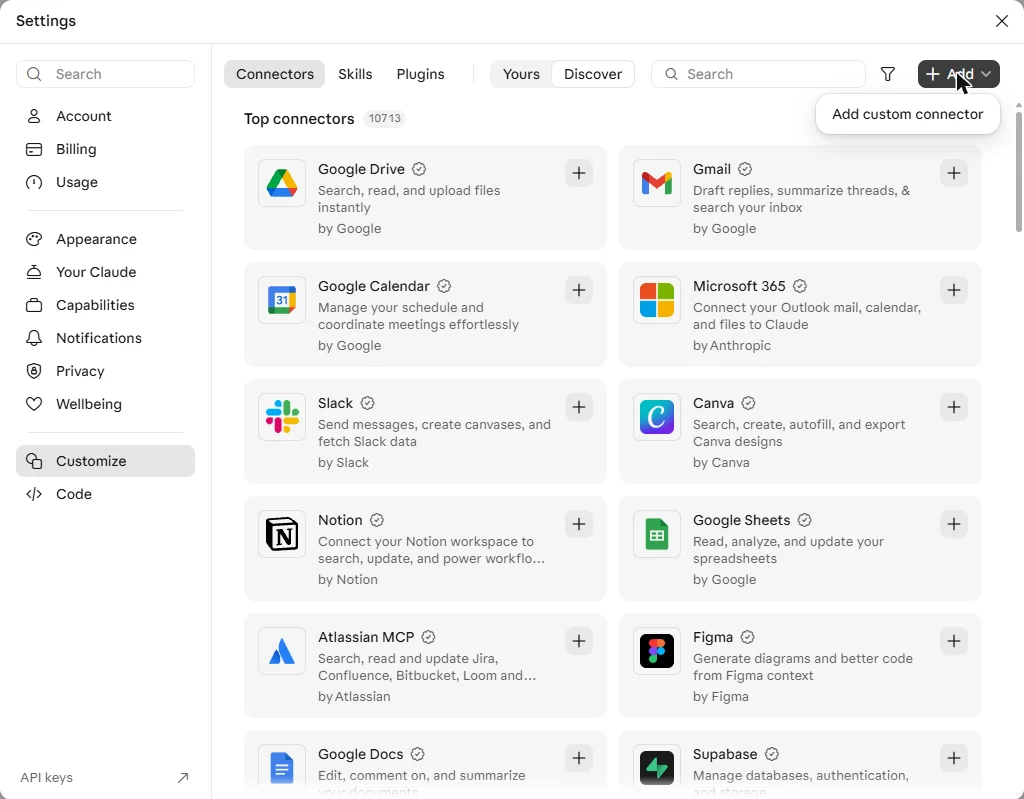
Open Customize → Connectors and click Add custom connector
In claude.ai or the Claude desktop app.
-
Paste the URL and click Continue
Name it WBX Sandbox, paste
https://sandbox.wbx.cz/mcp, click Continue and confirm. Leave the advanced OAuth settings empty – Claude registers itself. Screenshots of every step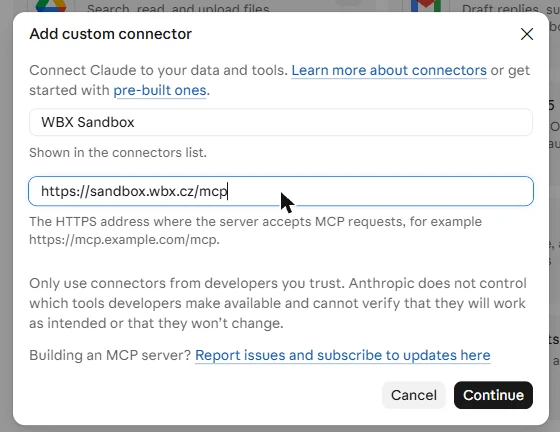
-
Sign in to WBX Sandbox and click Allow access
Claude opens our sign-in page. Approving connects your team (only team owners and admins can approve).
-
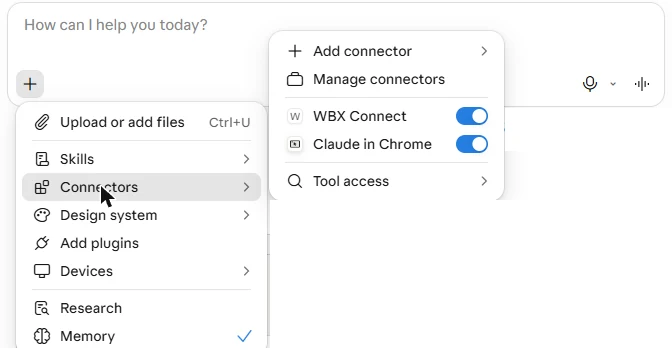
In a chat, switch it on and ask
Click + → Connectors and turn on WBX Sandbox. Then ask for something that needs a computer – see the prompts below.
ChatGPT
Custom MCP connectors need Developer mode, available on Plus, Pro, Business, Enterprise and Edu. In a workspace an admin may need to allow it first. OpenAI renames these menus from time to time – if a label differs, look for the same steps nearby.
-
Turn on Developer mode
Settings → Apps & Connectors → Advanced settings → Developer mode.
-
Create the connector
Back in Apps & Connectors click Create. Name: WBX Sandbox, URL:
https://sandbox.wbx.cz/mcp, Authentication: OAuth. Click Create. -
Sign in to WBX Sandbox and click Allow access
Same as above – ChatGPT opens our sign-in page.
-
Start a new chat and ask
Make sure WBX Sandbox is enabled for the chat (from the + menu), then ask. ChatGPT asks you to confirm before it runs actions.
Try these prompts
“Use WBX Sandbox to make me a Snake game I can play in my browser, and send me the link.”
“Use WBX Sandbox: which month in this spreadsheet had the best sales? Draw me a chart.”
“Clone https://github.com/psf/requests, run the test suite and tell me what fails.”
“Run these 20 scripts as a batch with at most 5 at a time and a $1 limit, then summarise the results.”
For developers
Every client below signs in with OAuth in the browser – you approve access on our page and no key is stored in a config file. Where a browser isn't available (a server, CI, SSH), use an API key from API keys instead; each section shows how. Approving a connection and creating API keys needs a team owner or admin.
Claude Code
claude mcp add --transport http wbxsandbox https://sandbox.wbx.cz/mcp
Then run /mcp inside Claude Code and sign in through the browser.
Without a browser: add --header "Authorization: Bearer YOUR_API_KEY" to the command.
Cursor
Add the server to ~/.cursor/mcp.json (all projects) or .cursor/mcp.json in a project:
{
  "mcpServers": {
    "wbxsandbox": {
      "url": "https://sandbox.wbx.cz/mcp"
    }
  }
}
Cursor detects that the server needs a sign-in and opens our page in the browser. Check that the server is enabled under Customize; problems show in the Output panel under MCP Logs.
Without a browser: add "headers": { "Authorization": "Bearer ${env:WBXSANDBOX_API_KEY}" } and set the variable in your shell profile – Cursor reads ${env:…} in remote server headers.
VS Code (GitHub Copilot)
Run MCP: Add Server from the Command Palette, choose HTTP and paste the URL – or run MCP: Open User Configuration and add:
{
  "servers": {
    "wbxsandbox": {
      "type": "http",
      "url": "https://sandbox.wbx.cz/mcp"
    }
  }
}
VS Code opens the sign-in in the browser on first use. To check the connection, ask Copilot for something that needs a sandbox and expand the tool call – a plausible answer without a tool call means the server wasn't used.
Without a browser: add "headers": { "Authorization": "Bearer ${input:wbx-key}" } and an inputs entry { "type": "promptString", "id": "wbx-key", "description": "WBX Sandbox API key", "password": true } – VS Code asks for the key once and stores it securely. Don't put the key itself in a shared .vscode/mcp.json.
Codex CLI
codex mcp add wbxsandbox --url https://sandbox.wbx.cz/mcp
codex mcp login wbxsandbox
The configuration goes to ~/.codex/config.toml and is shared with the Codex IDE extension. Check with codex mcp list or /mcp in the Codex terminal UI. On a machine without a browser, codex mcp login wbxsandbox --no-browser prints a URL to open elsewhere.
With an API key instead: in config.toml set bearer_token_env_var = "WBXSANDBOX_API_KEY" under [mcp_servers.wbxsandbox] – it names the environment variable, not the key itself.
Gemini CLI
gemini mcp add --transport http wbxsandbox https://sandbox.wbx.cz/mcp
Then in Gemini CLI run /mcp auth wbxsandbox and sign in. gemini mcp list shows whether the server is connected.
Known limitation: the sign-in needs a local browser (Gemini CLI listens on localhost for the redirect), so it doesn't work over SSH or on a headless server. There, configure the server in settings.json with "httpUrl": "https://sandbox.wbx.cz/mcp" and "headers": { "Authorization": "Bearer YOUR_API_KEY" }.
LangChain Deep Agents
No MCP needed – the langchain-wbxsandbox package gives your deep agent a sandbox as its execution backend. It is listed among the sandbox integrations in the LangChain docs.
pip install langchain-wbxsandbox
export WBXSANDBOX_URL=https://sandbox.wbx.cz
export WBXSANDBOX_API_KEY=YOUR_API_KEY
Full example: Examples → LangChain. Source: github.com/WBX-Sandbox/langchain-wbxsandbox.
Other MCP clients
Any client that supports remote MCP servers (Streamable HTTP) can use https://sandbox.wbx.cz/mcp with OAuth sign-in or with the header Authorization: Bearer YOUR_API_KEY. For clients that only start local programs (stdio), use our small helper program – downloads and configuration in SDKs & MCP.
If something doesn't work
- The assistant doesn't see the tools
- Start a new chat and check the connector is switched on for it. In ChatGPT, Developer mode must stay on. In VS Code and Cursor, check the server is enabled and look at the MCP logs.
- “Only team owners and admins can connect applications”
- Ask an owner of your WBX team to approve the connection, or to make you an admin. An owner or admin can also create an API key for you to use instead.
- The sign-in page doesn't open or never returns
- The client waits for the redirect on
localhost– it has to run on the same computer as your browser. Over SSH or on a server, use an API key instead (see the client's section above). - Do my files survive between chats?
- Yes, if you ask for a named sandbox (“use the WBX sandbox my-project”). Sandboxes started by your assistant fall asleep after 10 minutes without commands instead of being destroyed; the next command wakes them up with their files. Unused sleeping sandboxes are deleted after 7 days, or when you ask for it.
- How do I disconnect?
- Delete the key named “… (connected app)” in API keys – it stops working with the next request. Or remove the server in the client.
- What does it cost?
- Sandboxes and jobs the assistant runs are billed to your team like any other, per second. Set spending limits under Billing.