Your first result in Claude or ChatGPT
Connect your AI assistant to WBX Sandbox once, then ask it in plain words for something it cannot do in the chat alone – a game you can play, a converted file, a chart from your spreadsheet. The assistant gets its own small computer in the cloud, does the work there and gives you the result.
What you'll build
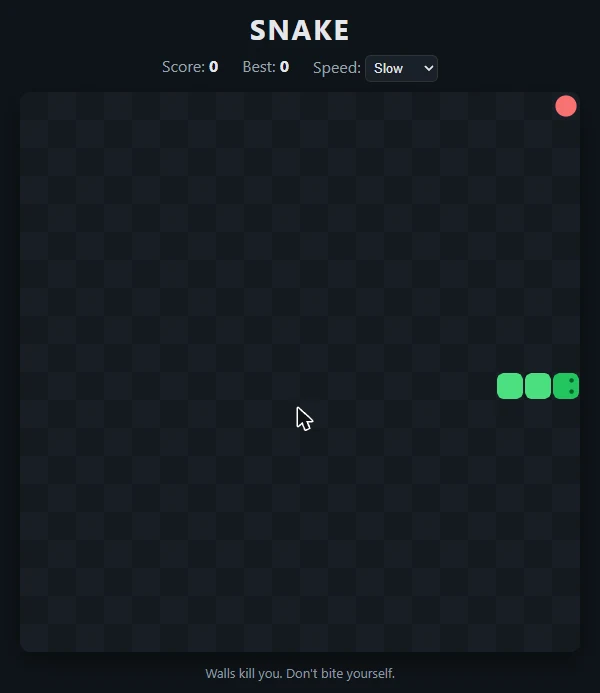
A Snake game that runs in your browser and works on your phone too – built and started by Claude in about half a minute. The example below is real: these are screenshots of exactly this request. Once it works, the same connection serves every other request in this guide's ideas.
What you need
- A Claude account (any plan) in claude.ai or the Claude desktop app – or ChatGPT, see the note below.
- A WBX Sandbox account. Create one for free – no card needed. You can also create it in step 3, when Claude sends you to our sign-in page.
- About five minutes. No programming.
Steps
-
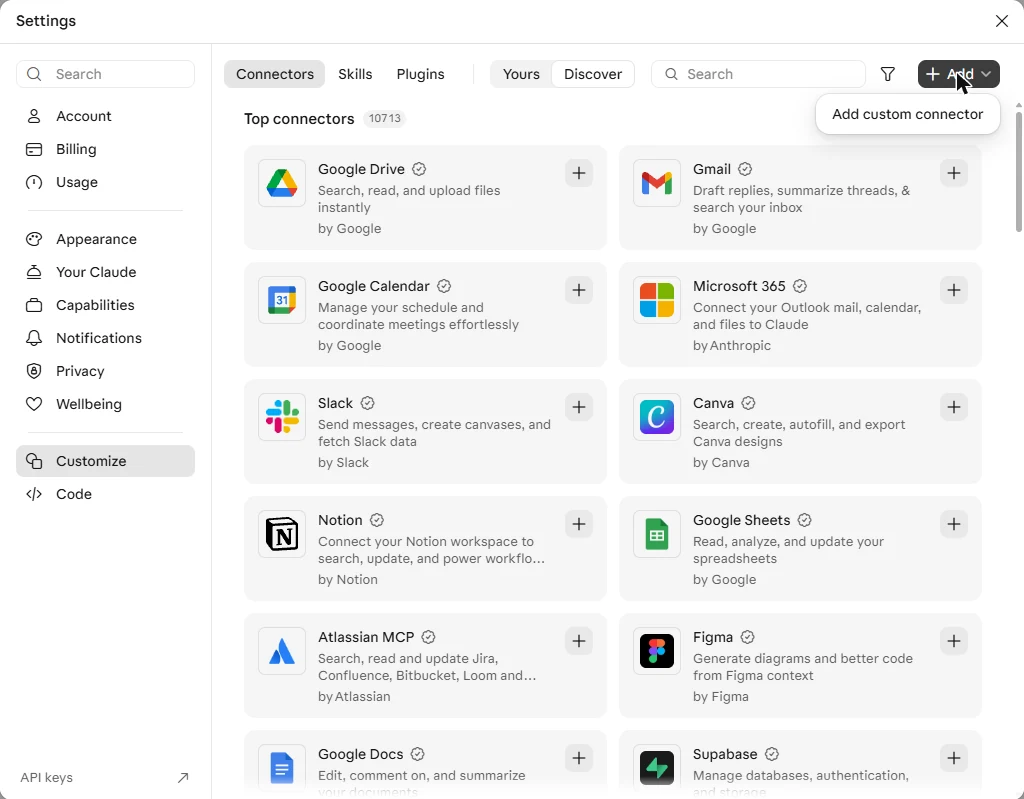
Open Customize → Connectors → Add → Add custom connector
In claude.ai or the Claude desktop app: click your name, then Settings → Customize.
-
Name it and paste the address
Name: WBX Sandbox (any name works). Address:
https://sandbox.wbx.cz/mcp. Click Continue and confirm. Leave the advanced settings (OAuth Client ID and secret) empty – you sign in with your WBX account in the next step.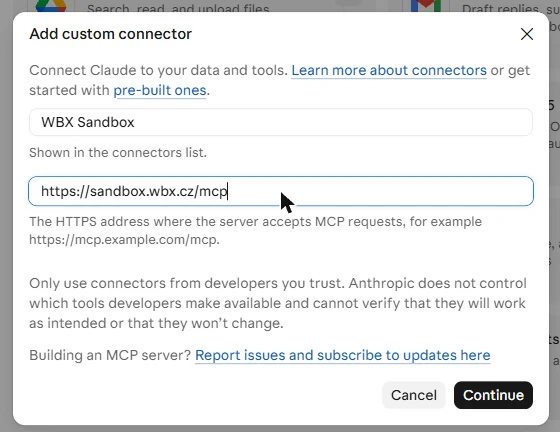
-
Sign in to WBX Sandbox and click Allow access
Claude opens our sign-in page. After you allow access, Claude can create and use sandboxes in your WBX account – nothing else on your computer.
-
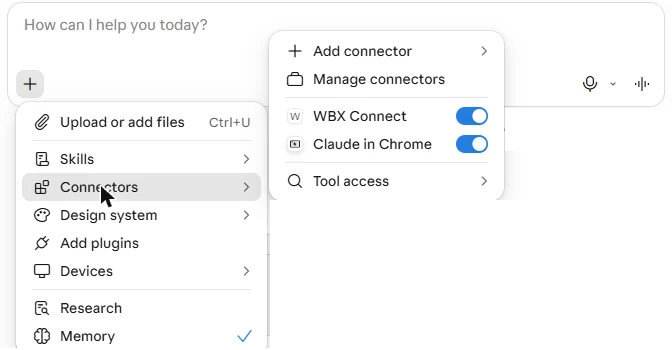
In a new chat, switch the connector on
Click + → Connectors and make sure the switch next to your WBX connector is on. (In our screenshots the connector still has its older name “WBX Connect” – yours shows the name you typed in step 2.)
-
Ask for a result
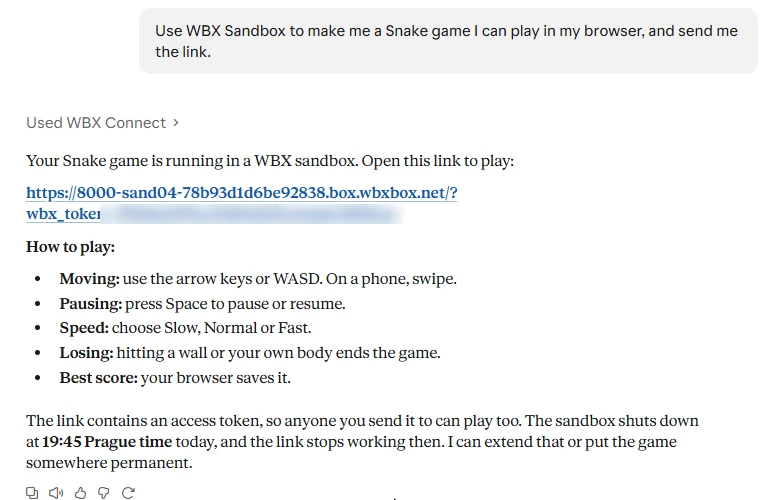
Start with “Use WBX Sandbox to …” and say what you want back. We typed:
“Use WBX Sandbox to make me a Snake game I can play in my browser, and send me the link.”
Claude may ask you to allow each tool the first time – click Allow. About half a minute later it answered with a private link.
-
Open the link
The game runs in the sandbox and works on a phone too. The link contains an access token – whoever has it can open the page – and stops working when the sandbox falls asleep or ends.
How to tell it works
- Above Claude's answer there is a line Used … with the name of your connector. Click it to see every step Claude took.
- The link opens a page in your browser, and the sandbox appears on the Sandboxes page of the WBX portal.

index.html, started a small web server and asked for a public address of its port.How to ask so it works the first time
- Name the tool. “Use WBX Sandbox to …” – otherwise the assistant may try to answer from memory.
- Say what you want back: a link you can open, a file, a chart, or just the answer. How files travel both ways is in Get files in and out.
- Long work? Ask it to “run it as a background job and tell me when it's done” – the job keeps running even if you close the chat.
- Need it longer, or done early? Say “keep the sandbox for two hours” or “delete the sandbox now”. A sandbox the assistant creates falls asleep after 30 minutes, or after 10 minutes without a command: its files stay, running programs (like the game's web server) stop. You pay for compute only while it runs.
Ideas to try
“Use WBX Sandbox: which month in this spreadsheet had the best sales? Draw me a chart.”
“Use WBX Sandbox to shrink these photos for the web and give me a ZIP.”
“Use WBX Sandbox to take screenshots of example.com on a phone and on a laptop.”
“Use WBX Sandbox without internet to run this script and tell me what it does.”
“Use WBX Sandbox to process all these files as a background job, with a limit of $1.”
“Use WBX Sandbox: create a sandbox called my-notes that I can come back to next week.”
Using ChatGPT?
The idea is the same: add WBX Sandbox as an app with the address https://sandbox.wbx.cz/mcp, sign in, allow access and ask. ChatGPT's menus differ – follow Connect ChatGPT, then come back to step 5. Cursor, VS Code, Codex, Gemini CLI or Claude Code? See Connect your AI assistant.
Common problems
| What you see | What to do |
|---|---|
| Claude answers without using the sandbox | Check that the connector is switched on in this chat (step 4) and start your message with “Use WBX Sandbox to …”. |
| The connector shows an error or asks to connect again | Open Customize → Connectors, click your WBX connector and connect again; sign in with the same WBX account. |
“account limit reached (concurrent sandboxes, vCPU or memory)” (429 quota) | You already have as many sandboxes running as your plan allows. Ask Claude to “list my sandboxes and delete the ones I don't need”, or end them on the Sandboxes page of the portal. |
An error about credit or payment (402) | Your credit has run out – top it up under Billing in the portal. |
| The link stopped working | The sandbox fell asleep or ended, so the web server stopped. Ask “start the game again in the same sandbox and send me a new link”. |
More in If something doesn't work.